![SurgereLogo-DarkBlue.png]](https://go.surgere.com/hs-fs/hubfs/SurgereLogo-DarkBlue.png?height=30&name=SurgereLogo-DarkBlue.png)
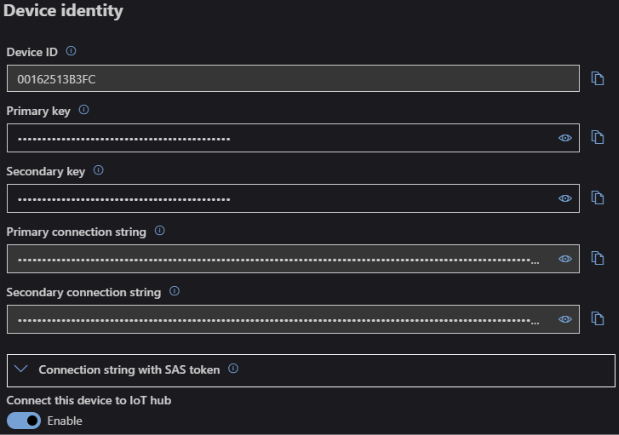
- Select reader from list of Devices
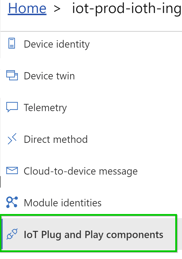
- Select IoT Plug & Play Components
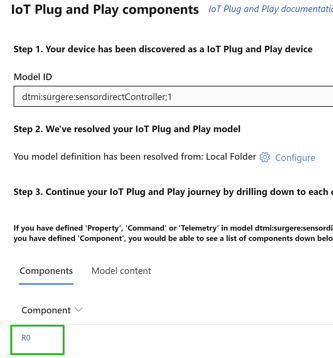
- Select Component 'R0'
4. Select Properties (Writeable)

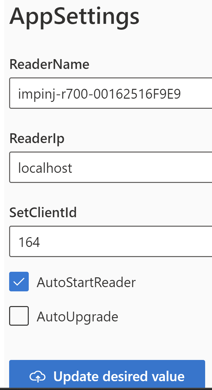
AppSettings
- Reader Name – impinj-model-[MAC Address]
- impinj-r420-001625DEs2
- Reader IP – localhost
- Set Client ID – Interius Client ID (i.e. Honda = 59)
- Auto Start Reader – True
- Auto Upgrade - False
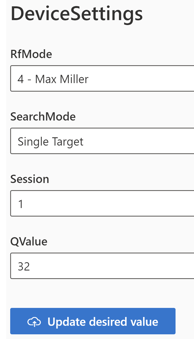
Device Settings
- RfMode – Single Session
- SearchMode – MaxMiller
- Session – 1, 2, or 3 (reference hardware entry)
- QValue – 32
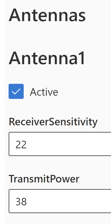
Antennas - reference hardware entry form for power settings
- Select "Active" for Antenna 1 – Antenna 4
- Receiver Sensitivity – 1 to 42 (default 22)
- Transmit Power – 1 to 87
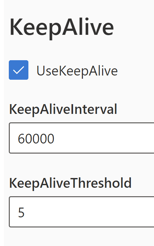
Keep Alive
- Use Keep Alive – True
- Keep Alive Interval – 60000
- Keep Alive Threshold – 5
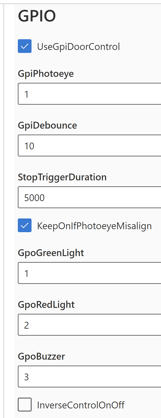
GPIO
- Use GPI Door Control – True
- GPI Photoeye – 1
- GpiDebounce - 10
- StopTriggerDuration – 5000
- KeepOnIfPhotoeyeMisalign = True
- GpoGreenLight – 1 (Default)
- GpoRedLight – 2 (Default)
- GpoBuzzer – 3 (Default)
- Inverse Control On/Off – False
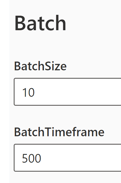
Batch – Leave defaults
- Batch Size - 10
- Batch Timeframe - 500
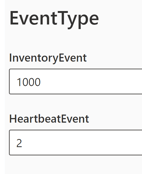
Event Type – Leave defaults
- Inventory Event - 1000
- Heartbeat Event - 2
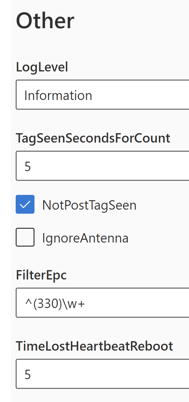
Other
- LogLevel - Information
- Tag Seen Seconds for Count - 5
- Not Post Tag Seen – True
- IgnoreAntenna –False
- FilterEpc – ^(330)\w+
- TimeLostHeartbeatReboot - 5
Select Commands from top menu

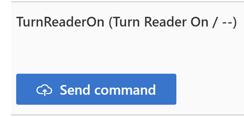
Click "Send Command" under Turn Reader On
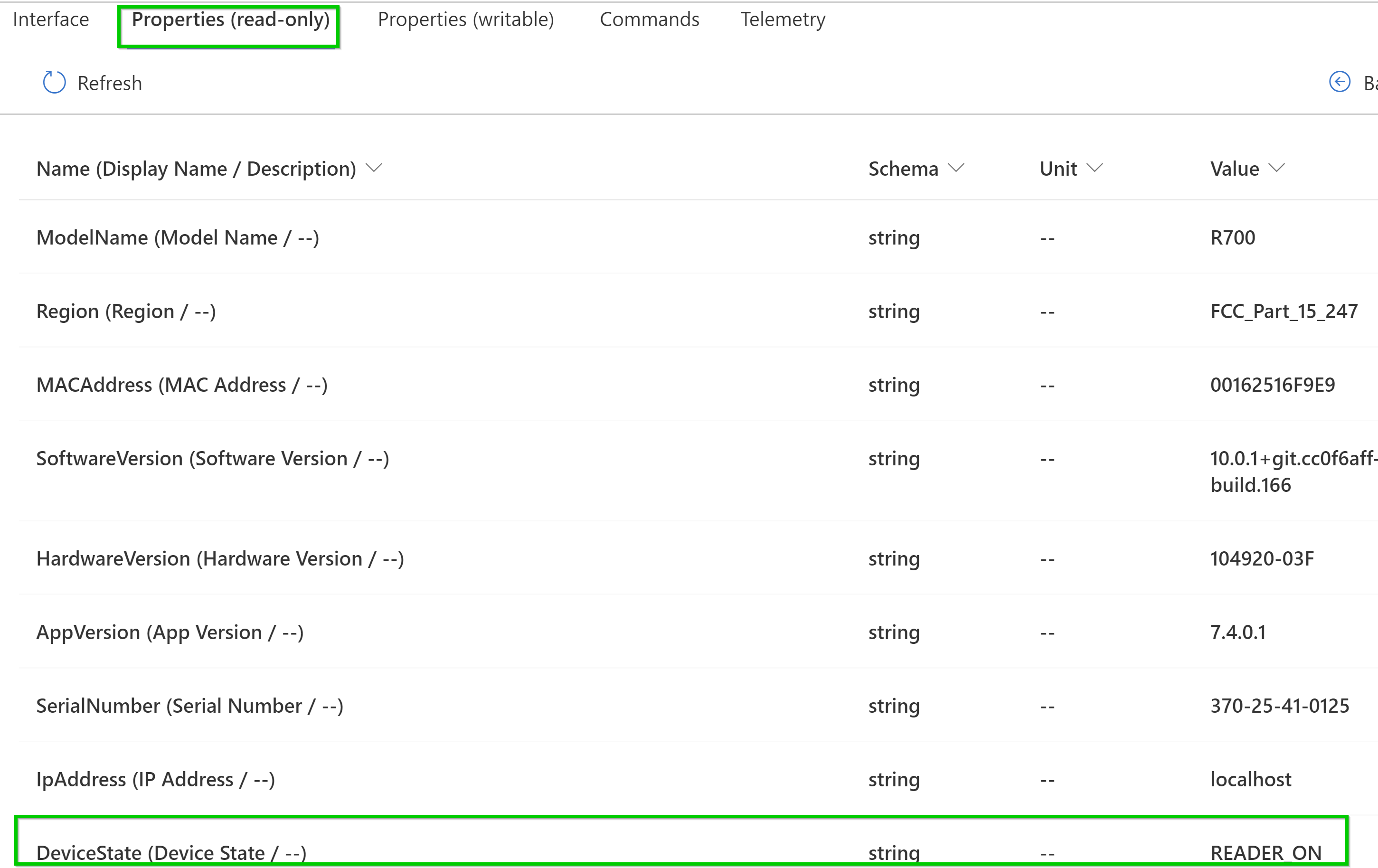
Select Properties (read-only) from top menu and confirm Device State = READER_ON